Mermaid diagrams in team docs: a practical guide
Diagrams-as-code that live next to the text, review like code and never go stale in a drawing tool. Five copy-paste examples, where Mermaid renders, and the mistakes that break a diagram.
Most diagrams in team docs die the same way: someone draws them in a drawing tool, exports a PNG, pastes it into a doc, and six months later the architecture has moved on and nobody can find the source file.
Mermaid fixes the part that matters: the diagram is text inside the Markdown, in a fenced code block. It changes in the same edit as the paragraph above it, shows up in the diff when someone reviews the change, and renders wherever the doc is read, as long as the renderer supports Mermaid.
This guide is for engineers writing design docs, runbooks and READMEs. It covers the five diagram types that carry most team docs, with source you can copy, the rendered result, and the syntax traps that produce “Syntax error in text” at the worst moment.
How Mermaid works in Markdown
You write a fenced code block with the language set to mermaid:
```mermaid
flowchart LR
  a[Write the doc] --> b[Open a PR] --> c[Review the diagram as text]
```
A renderer that understands Mermaid replaces the block with an SVG. One that doesn’t shows the source as a code block, which is still readable: that graceful fallback is a big part of why Mermaid works for docs.
The first line names the diagram type (flowchart, sequenceDiagram,
stateDiagram-v2, erDiagram, gantt, and
many more: class,
mindmap, timeline, gitGraph, C4, Sankey, XY charts, architecture and
others). This guide uses Mermaid 12.2, the current release. The rest is
that type’s syntax.
Where Mermaid renders
Support varies, and it’s the first thing to check before you standardise on Mermaid for a team.
| Where | Renders ```mermaid blocks? |
|---|---|
| GitHub (Markdown files, issues, PRs, discussions, wikis) | Yes, since February 2022 |
| GitLab | Yes (docs) |
| Azure DevOps wiki | Yes, with ::: mermaid blocks, for a subset of diagram types; write graph, not flowchart (docs) |
| Obsidian | Yes (docs) |
| Notion | Yes, a code block set to Mermaid, with preview (since December 2021) |
| Docusaurus | With @docusaurus/theme-mermaid |
| Confluence | Through Marketplace apps, not natively |
| Slack and Discord messages | Not that we could find documented; the source shows as code |
| Hasarak pages | Yes, in the web app with mermaid.js; the terminal and desktop apps render flowchart and sequenceDiagram |
Renderers also differ in version. Mermaid adds diagram types and syntax regularly, and a platform pinned to an older release will fail on newer syntax. If a diagram works in the Mermaid Live Editor but not in your wiki, a version gap is the usual reason.
Example 1: a flowchart for a process
Flowcharts are the workhorse: deploy pipelines, decision trees, request routing, on-call escalation.
flowchart TD
  pr[Pull request] --> ci{CI green?}
  ci -- no --> fix[Fix and push]
  fix --> ci
  ci -- yes --> review{Approved?}
  review -- changes requested --> fix
  review -- yes --> merge[Merge to main]
  merge --> deploy([Deploy])
What to know:
TDlays it out top-down;LRleft to right. Pick the one that matches the doc’s width: left-to-right flows get cramped on a phone.- Shapes come from the brackets:
[box],{decision},([stadium]),((circle)),[(database)]. -- label -->puts text on an edge. Keep edge labels to a word or two.- Node ids (
pr,ci) are separate from labels, so you can reword a label without touching the edges.
Example 2: a sequence diagram for a protocol
Sequence diagrams are the best tool for anything with a request and a response: auth flows, webhooks, retries. This one is the OAuth sign-in an MCP client does against a chat server (the flow from the MCP guide):
sequenceDiagram
  autonumber
  participant C as MCP client
  participant S as Chat server
  participant B as Browser
  C->>S: POST /mcp
  S-->>C: 401 + resource metadata URL
  C->>S: POST /oauth/register
  S-->>C: client_id
  C->>B: open /oauth/authorize (PKCE)
  B->>S: sign in and approve
  S-->>C: redirect with code
  C->>S: POST /oauth/token (code + verifier)
  S-->>C: access token + refresh token
  C->>S: POST /mcp (Bearer token)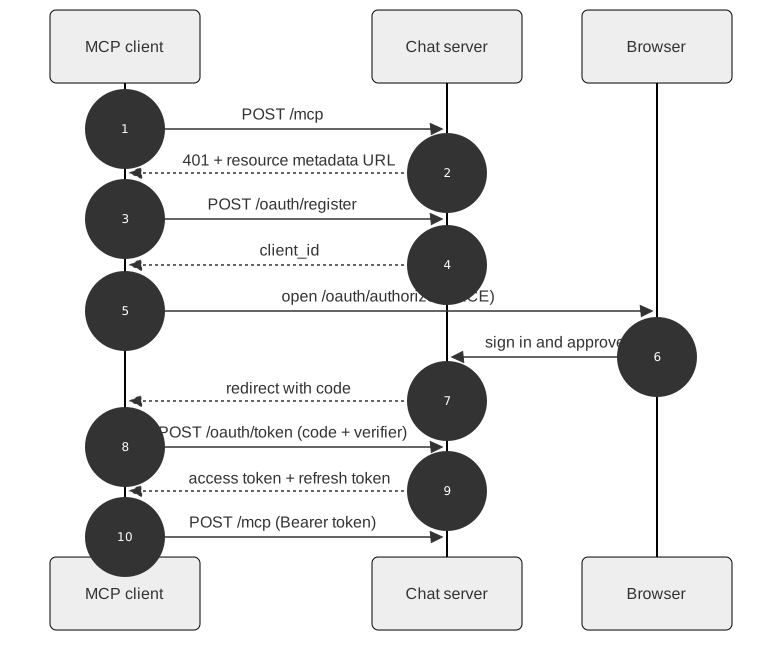
What to know:
->>is a solid arrow (a call),-->>a dashed one (a response).autonumbernumbers the steps, which makes the diagram easy to refer to in review comments (“step 7 should also sendstate”).participant X as Long namekeeps the source short and the picture readable.alt/else/end,opt,loopandparblocks show branches and repetition;Note over C,S: textadds a note across participants.
Example 3: a state diagram for a lifecycle
Anything with statuses (incidents, orders, feature flags, PR states) reads better as a state diagram than as a bulleted list:
stateDiagram-v2
  [*] --> Investigating: alert fires
  Investigating --> Identified: cause found
  Identified --> Monitoring: fix deployed
  Monitoring --> Investigating: it came back
  Monitoring --> Resolved: quiet for 30 min
  Resolved --> [*]
Use stateDiagram-v2, not stateDiagram: the v2 renderer is the current one.
[*] is the start or end state. This exact diagram is a good header for an
incident runbook; see running incidents in chat.
Example 4: an ER diagram for a schema
When a design doc changes tables, an ER diagram in the doc beats a screenshot of a database GUI:
erDiagram
  WORKSPACE ||--o{ CHANNEL : has
  CHANNEL ||--o{ MESSAGE : contains
  MESSAGE ||--o{ MESSAGE : "replies to"
  PERSON ||--o{ MESSAGE : writes
  WORKSPACE ||--o{ PAGE : has
  MESSAGE {
    string id PK
    string channel_id FK
    string parent_id FK
    string author_id FK
    text body
  }
The relationship syntax is crow’s foot notation written in ASCII: || is
exactly one, o{ zero or more, |{ one or more. Quote a label that has
spaces ("replies to").
Example 5: a Gantt chart for a plan
Gantt charts in docs are best for rough plans that change, where a dedicated project tool would be overkill:
gantt
  title Release 2.4
  dateFormat YYYY-MM-DD
  section Build
    API changes        :a1, 2026-11-02, 5d
    Web client         :a2, after a1, 6d
  section Ship
    Beta               :b1, after a2, 4d
    General release    :milestone, after b1, 0d
after a1 chains tasks, so moving the first date moves everything after it.
That’s the main reason to use Mermaid here instead of a table of dates.
The mistakes that break diagrams
Most “Syntax error in text” messages come from a short list:
- A node called
end. In flowcharts, lowercaseendcloses a subgraph, soa --> endfails. WriteEnd,ENDordone[end]. - Special characters in labels. Parentheses, brackets, colons, quotes
and
#confuse the parser. Wrap the label in double quotes:a["POST /oauth/token (PKCE)"], and use entity codes such as#quot;for a literal quote. - A node id starting with
oorxafter--.a---oBis read as a circle-ended edge toB. Add a space or rename the node. - Tabs and stray indentation in Gantt charts and ER attribute blocks. Use spaces.
- Newer syntax on an older renderer. Check what version your platform runs before using a recently added diagram type.
- Interactivity that’s switched off. With
securityLevel: "strict", Mermaid’s default,clickcallbacks are disabled and HTML tags in labels are escaped. Platforms rendering user content keep it strict, so don’t rely on either in shared docs.
When a diagram fails, paste it into mermaid.live, which shows the error with a line number.
Habits that keep diagrams useful
- One idea per diagram. If it needs a legend, split it.
- Name nodes after the code. Use the service, table or function names people will search for.
- Keep it under about 15 nodes. Past that, layouts get hard to read on a laptop and impossible on a phone.
- Put the diagram next to the text it explains, not in an appendix. The point of diagrams-as-code is that they change in the same edit.
- Review the source, not the picture. A PR diff of a Mermaid block shows exactly which edge changed.
- Don’t hand-tune layout. Mermaid does automatic layout; fighting it with invisible nodes makes the source unreadable. If layout really matters, it’s a drawing, not a diagram-as-code.
Mermaid in Hasarak pages
Hasarak workspaces have pages: Markdown docs that live next to the
channels and threads that discuss them (g d opens them). A
```mermaid block in a page renders as a diagram:
- In the web app, with mermaid.js (in strict security mode).
- In the terminal and desktop apps, with a Rust renderer that supports
flowchartandsequenceDiagramand draws the same picture in every client. The terminal app shows it through the Kitty graphics protocol in Kitty and Ghostty. Other diagram types show their source. (Those apps have no public release yet; the web app is the shipped client.)
Pages can also be written by AI agents through the workspace’s
MCP server: tools.hasarak.pages.create takes a
Markdown body, and its description tells the agent that Mermaid blocks
render. Asking an agent to “turn this thread into a page with a sequence
diagram of the flow” is one of the more useful things it can do there. See
chat with docs for how pages fit into the workspace.